
Overview
This guide walks you through the entire process of preparing to publishing your first Quick-Share video in Trainn, in about 15 minutes.
Before You Start: Quick Prep
Before you hit record, spend 2 minutes preparing:
Close unnecessary tabs and apps — This reduces distractions and improves recording performance
Open what you need to show — Whether it's a website, document, or application
Test your audio — Are your speakers/headphones working? Is the mic picking up your voice clearly?
Choose your Voiceover settings — Trainn let's you record your live narration for your videos or choose to add audio later for Quick-Share mode.
Steps:
Go to Trainn Library and click the Create button
Select Create Video from the drop-down.
Click the Record Screen option.
Select your preferred or Add Audio Later from the Voice Settings option.
To learn more about voice settings, refer to this doc.
Disable Auto Apply Zoom/Spotlight and enable Quick Sharing under Automations.
Click Share Screen and Record button, select the specific chrome tab you want to record and click Share.
We recommend you share your Chrome tab to record your screen for the best results.
Perform the actions you want to capture.
When you have finished, click Stop Sharing.
Trainn would instantly publish the video for you and you will be redirected to the Video Page.
Note: Instant Publishing does not make your video publicly available immediately. Instead, it skips Trainn's auto-editing process so you can share your recording right away. You can still control who can access the video through its Privacy Settings.
Managing Privacy:
Click Share & Export options
Choose your Privacy Settings:
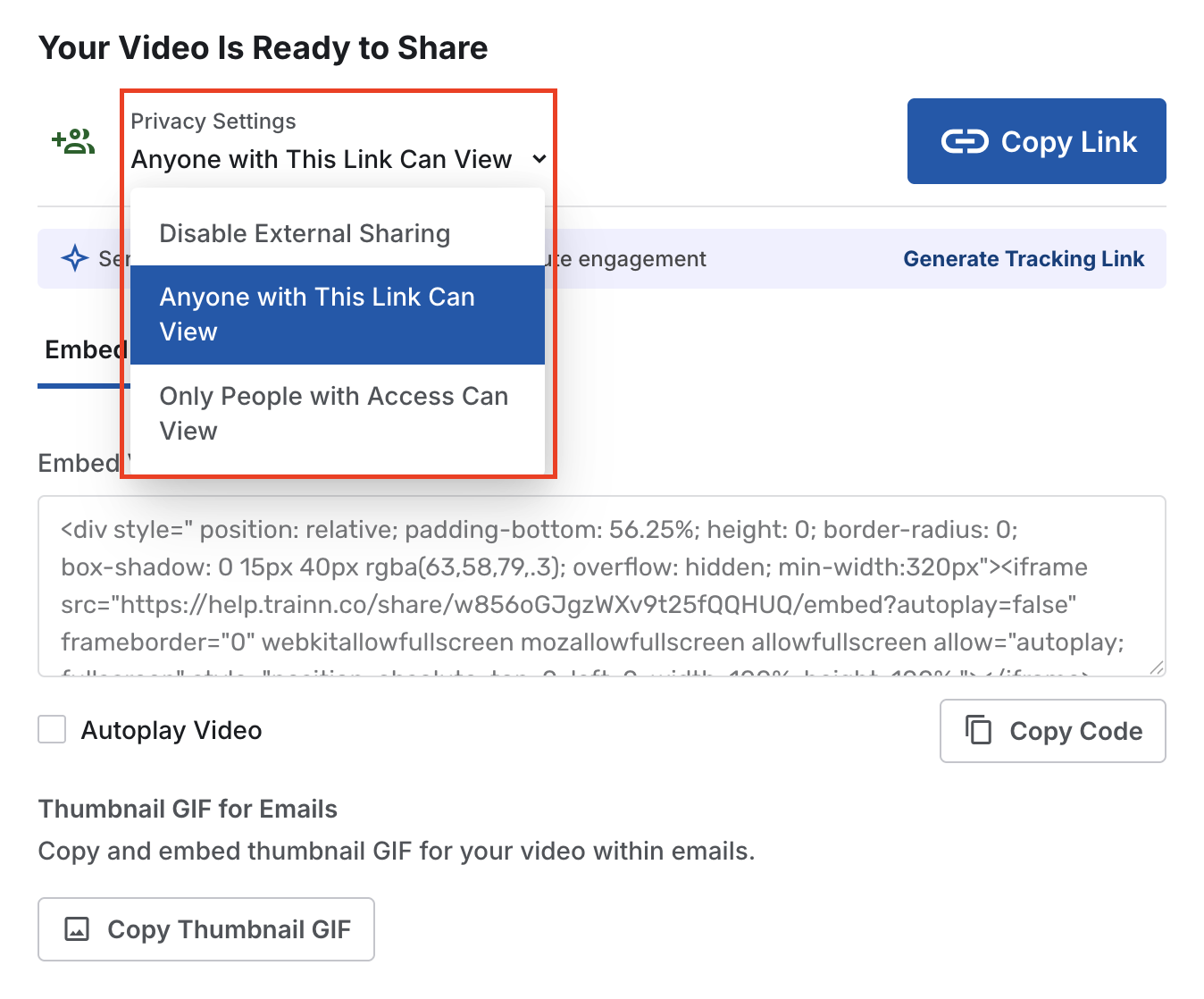
Click the Share button to copy the link and send it out
Common Beginner Tips
Speak as if explaining to a friend — Conversational tone is more engaging than scripted-sounding
Pause before explaining complex steps — Give viewers time to follow your mouse movements
Keep it short — 3 minutes is better than 10 minutes with rambling
One topic per video — "How to create a project" beats "Everything about Trainn in 20 minutes"
Troubleshooting
"My audio sounds muffled or quiet"
Check that your microphone is unmuted at the OS level
Move closer to your microphone
Try re-recording with a different mic if available
"The video took forever to process"
Long videos (10+ minutes) take longer to process
If it's stuck after 5 minutes, refresh the page or reach out to support@trainn.co
